
WooCommerce and payment gateways are marvelous miracles that come in pairs. WooCommerce supports Stripes and Paypal. It is a bit tinkering to integrate other options.
Nowadays, NFC payments are making huge rounds and so is Apple Pay.
A short description of Apple Pay
Apple Pay is the best mobile payment and digital wallet solution. It offers a convenient and simple way to send and receive money.
Apple Pay is the most trusted means of payment. The logo of Apple is fair enough to attain the trust of customers while making their payments.
It operates like a credit card but in this, the information of the payment is stored inside the device of the user. So, a user need not pull their credit card every time for online or in-person payments.
The users of Apple Pay can link their credit and debit cards. Your store can process the payment within seconds if your store accepts Apple Pay payments.
Why should you go for Apple Pay for your WordPress website?
Online vendors are accepting numerous forms of payment such as Cash on Delivery, credit cards, bank cards, and debit cards. But, online retailers are expanding their options. They look for more and more technology-focused and secure gateways.
The Apple Pay user’s numbers in the United States is estimated to grow by 8.7%. It is forecasted that it will reach 45.5 million this year.

WordPress and Apple Pay
You cannot integrate any payment into WooCommerce that is not supported by WordPress. Apple Pay is one such kind of third-party service.
Apply Pay is not highly acclaimed because of its iOS ecosystem but also for NFC integration.
You can set up Apple Pay for WooCommerce via Stripe. The combination of Stripe and WooCommerce will securely and quickly add Apple Pay to your WordPress site.
Steps to set up Apple pay and WooCommerce
You can integrate Apple Pay with WooCommerce payments into your business. You can receive the payment quickly as soon as you set up WooCommerce payments. It is because the configuration of Apple Pay is done instantly.
Now, if you are planning to set up the WooCommerce payments manually, please follow the below-mentioned steps.
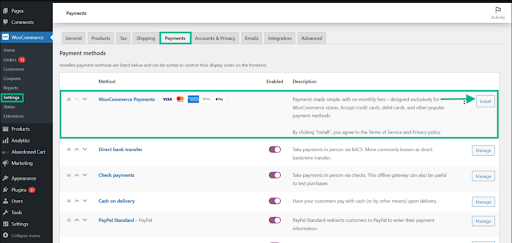
Hit “WooCommerce” and press “Settings”. Click “Payments” and tap “Install”. This you will find beside the WooCommerce payments.
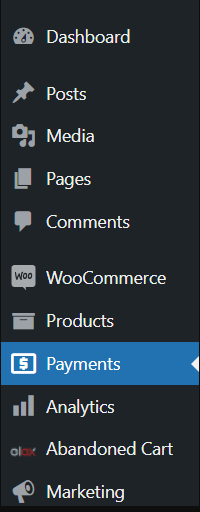
You can see an area that states payments on the dashboard when the installation is complete.
If you are enabling Apple Pay manually, please follow the below-mentioned steps.
Navigate for “Dashboard” and Click “Payments”. Then tap “Settings”.
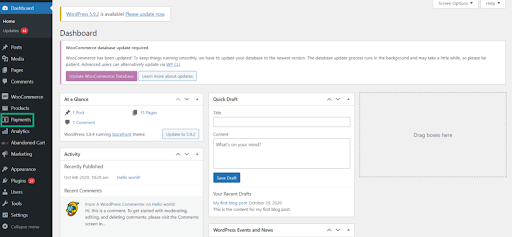
Do not miss to check “Enable express checkouts”.

Click “Save”. Even customization of the appearance of the Apple Pay button can be done easily. For this, browse for “Payments” and hit “Settings”. Next, you need to choose “Customize Appearance”.
You can even customize a WooCommerce Login page. Check this link to know more.
Set up Stripe Payment Gateway
Please enable SSL on your WordPress site so that you can operate Stripe with WooCommerce.
WooCommerce will take you through the Setup Wizard. This you will come across while installing the plugin initially. You can set the Stripe payments on your site here.
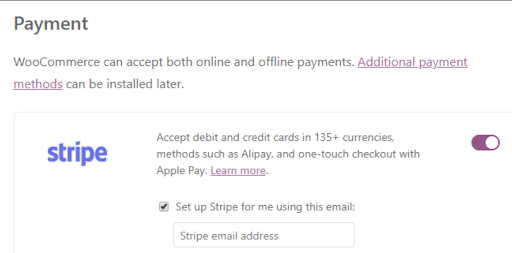
Make sure to complete the remaining steps of the wizard. Before that, you must toggle the option on.
Hover over “Plugins” and click the tab “Add New”. On the search box, type “WooCommerce Stripe Payment Gateway”.
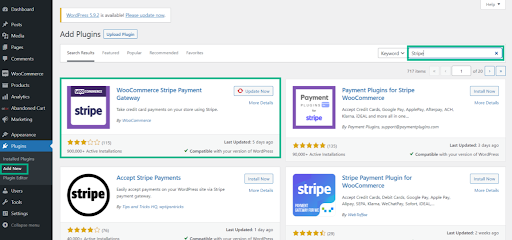
Click “Install Now” and give a few seconds to set up things. Tap the button “Activate” when the installation is over.
Enable Apple Pay via Stripe
You have to take care of two things before you start accepting Apple Pay and Stripe payments. Initially, you need to import the account credentials of Stipe into WooC commerce. Check for Apple Pay payments, enable it!!
This you can do on the same screen itself. Now, under “WooCommerce” browse for Stripe Setting and click “Setting” once you find it. Then tap the tab “Payments”.
When you find it, navigate for “Manage”.
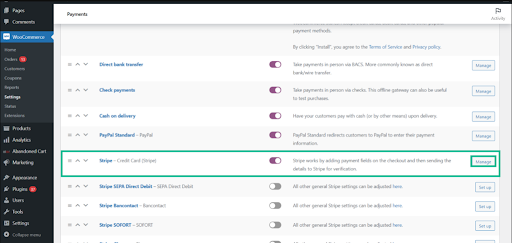
You can see 2 fields on the next screen, they are:-
- Live Secret Key
- Live Publishable Key

You can get details of both the keys in your Stripe account. You need to copy and paste it. Once done, scroll it and turn on the button “Payment Request”.

This option will instantly enable Apple Pay as soon as the customer will make an attempt makes an attempt to pay with Stripe using Safari. For this, you must save the setting of your WooCommerce and you are set to go!!
If you are finding it hard to set up Apple Pay and WooCommerce, hire JustAnotherWP!!
We are a full-fledged WooCommerce Support service provider with an end-to-end portfolio and global clientele. We can help you to set a revolutionary path of innovation using cognitive technologies and agile strategies.